Quick Summary
Tawhid app provides accurate prayer times based on your location with multiple calculation methods. You can customize Azan alerts, set pre/post reminders, choose Adhan voices, and adjust settings for high-latitude regions. This guide covers everything you need to configure perfect prayer times for your location.
Check prayer times for your city →
Why Accurate Prayer Times Matter
Prayer times (Salah times) are one of the most important features for any Muslim app. Accurate timing ensures you never miss Fajr, Dhuhr, Asr, Maghrib, or Isha prayers. Tawhid app uses reliable calculation methods and allows you to customize settings based on your location, school of thought, and personal preferences.
Step 1: Accessing Prayer Times Settings
To configure your prayer times in Tawhid app:
- Open the Tawhid app on your device
- Tap on the "Prayer Times" icon in the bottom navigation bar
- You'll see various options including Location, Manual Correction, Prayer Time Conventions, and more
Step 2: Setting Your Location
Your location is crucial for accurate prayer time calculations. Tawhid offers two ways to set your location:
Automatic Location Detection
Enable Automatic Settings:
- Toggle on "Automatic Settings" in the Prayer Times settings
- The app will use your device's GPS to automatically detect your location
- Prayer times will update automatically as you travel
Manual Location Selection
Set Location Manually:
- Tap on "Location" in the settings
- Search for your city or select it from the list
- You'll see your current location (e.g., "Burnaby, Canada") displayed
- This is useful if GPS is unavailable or you want to set a different location
Step 3: Choosing Prayer Time Calculation Methods
Tawhid supports multiple calculation methods to ensure accuracy based on different Islamic schools of thought and regional preferences:
Prayer Time Conventions
Available Options:
- Auto: Automatically selects the best method for your location
- ISNA (Islamic Society of North America): Recommended for North America
- MWL (Muslim World League): Used in many countries worldwide
- Egyptian: Based on Egyptian General Authority of Survey calculations
- Umm al-Qura: Used in Saudi Arabia
- Karachi: University of Islamic Sciences, Karachi method
- Other regional methods: Various other calculation methods for specific regions
Juristic Method (Asr Calculation)
The Juristic Method determines how Asr prayer time is calculated:
- Shafi/Maliki/Hanbali: Asr when shadow length equals object length (Standard method)
- Hanafi: Asr when shadow length equals twice the object length
- Select based on your school of thought or preference
Step 4: High Latitude Adjustment
For locations at high latitudes (far north or south), where normal calculation methods may not work well, Tawhid offers adjustment options:
- Auto: Automatically applies the best adjustment method
- Angle-Based: Uses a fixed angle method
- One-Seventh of Night: Divides the night into seven equal parts
- Middle of Night: Uses the middle of the night method
Step 5: Manual Time Correction
If you need to fine-tune prayer times, you can use manual correction:
- Tap on "Manual Correction" in settings
- You'll see values like "1,0,0,0,0,0" representing adjustments for each prayer
- Adjust minutes for: Fajr, Sunrise, Dhuhr, Asr, Maghrib, Isha
- Use positive numbers to add minutes, negative to subtract
- This is useful if your local mosque times differ slightly from calculations
Step 6: Configuring Azan (Adhan) Alerts
Azan alerts ensure you never miss a prayer. Tawhid offers comprehensive Adhan settings:
Accessing Adhan Settings
- Go to Prayer Times
- Tap on "Adhan Settings" or the bell icon
- You'll see options for Pre/Post Reminders and Adhan Voice settings
Pre-Adhan Reminder
Set an alarm for certain minutes before the Adhan time:
- Enable "Pre-Adhan Reminder"
- Set the number of minutes before prayer (e.g., 5, 10, 15 minutes)
- Useful for preparing for prayer, especially for Fajr
- You can set different reminders for each prayer
Post-Adhan Reminder
Set an alarm for certain minutes after the Adhan time:
- Enable "Post-Adhan Reminder"
- Set the number of minutes after prayer time
- Helpful if you missed the initial Adhan
- Great backup reminder system
Adhan Voice Selection
Tawhid offers multiple Adhan voices for each prayer. For Fajr specifically, you can choose from:
- No Notification: Disable Adhan for this prayer
- No Sound: Silent notification only
- Sunrise: Simple sunrise sound
- Short Beep: Brief notification sound
- Notification: Standard notification sound
- Adhan Al Haram Al Madade: Beautiful Makkah Adhan (recommended)
- Nasser Al Abd Al Jabar - Adhan: Alternative Adhan voice
- Other voices: Multiple other muezzin options available
💡 Pro Tip
For Fajr prayer, many users prefer "Adhan Al Haram Al Madade" as it's the authentic Makkah Adhan. You can set different voices for different prayers based on your preference. Test different options to find what works best for you.
Step 7: Viewing Prayer Times
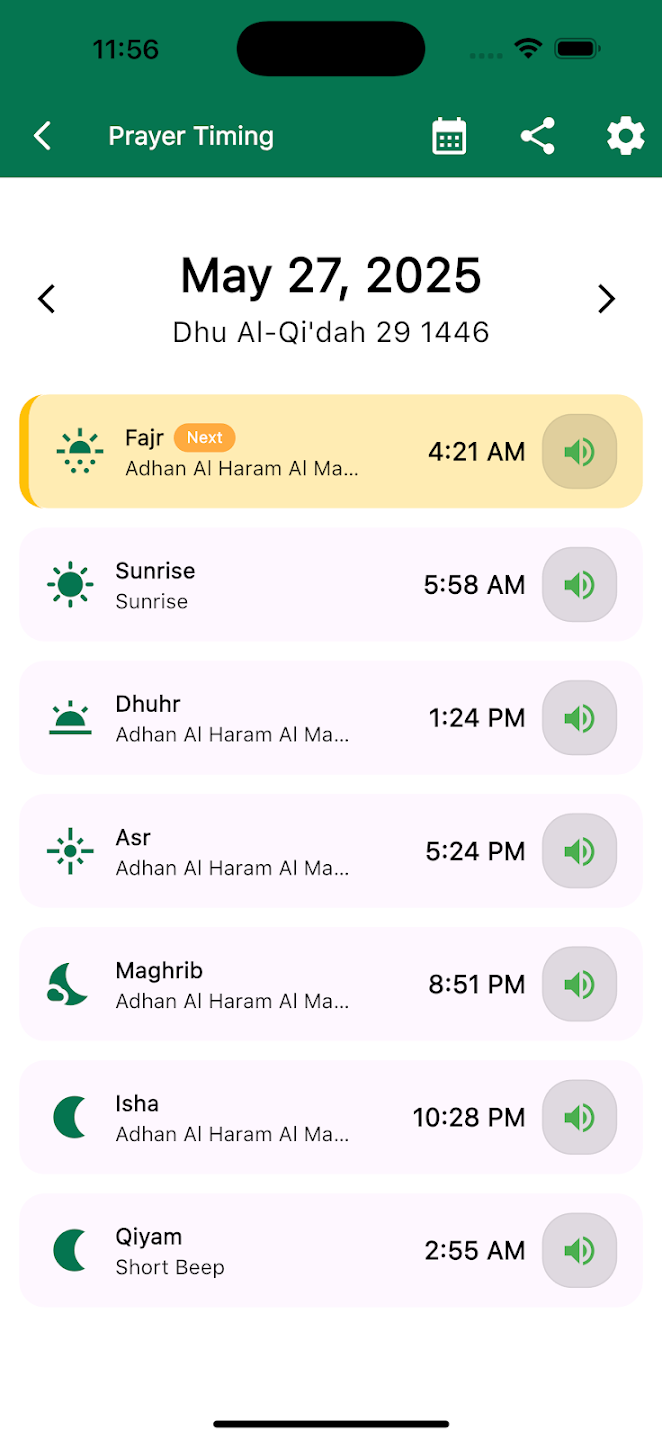
Once configured, you can view your prayer times in the main Prayer Times screen:
- Navigate to the "Prayers" tab in the bottom navigation
- You'll see the current date (e.g., "February 15, 2026") and Islamic date (e.g., "Sha'aban 27, 1447")
- All five daily prayers are listed: Fajr, Dhuhr, Asr, Maghrib, Isha
- The next upcoming prayer is highlighted (e.g., "Maghrib in 01h 52m")
- Each prayer shows the exact time and Adhan status
- Use the calendar icon to view prayer times for other dates
Common Issues and Solutions
Prayer Times Seem Incorrect
- Verify your location is set correctly
- Try a different calculation method (ISNA, MWL, etc.)
- Check if manual correction is needed
- Ensure your device time zone is correct
Not Receiving Azan Notifications
- Check notification permissions in device settings
- Ensure "Do Not Disturb" mode is not active
- Verify battery optimization isn't blocking notifications
- Check that Adhan voice is not set to "No Notification"
- Restart the app if issues persist
High Latitude Locations
- If you're in a high latitude area (far north/south), enable "High Latitude Adjustment"
- Try different adjustment methods (Auto, Angle-Based, etc.)
- Consult with your local mosque for recommended settings
Best Practices
- Use Automatic Location: For most users, automatic location detection works best
- Set Pre-Adhan Reminders: Especially helpful for Fajr prayer
- Choose Appropriate Calculation Method: Match your region or school of thought
- Test Different Adhan Voices: Find one that works best for you
- Keep App Updated: Updates may include improved calculation methods
- Verify with Local Mosque: Compare times with your local mosque for accuracy
Conclusion
Setting up accurate prayer times in Tawhid app is straightforward once you understand the available options. By configuring your location, choosing the right calculation method, and customizing Azan alerts, you'll have reliable prayer times that help you maintain your daily Salah schedule.
Remember, prayer times may vary slightly between different calculation methods and local mosques. Use the manual correction feature if needed to align with your local community's times.
Ready to Set Up Your Prayer Times?
Download Tawhid app now and follow this guide to configure accurate prayer times for your location.
Related Articles
Complete Guide to Reading Quran with 50+ Translations
Learn how to use Tawhid's Quran feature with audio recitations and translations.
Read more →
Hadith Collection: Sahih Bukhari, Muslim & More
Read Hadith with Arabic, translations, search by word or number in Tawhid app.
Read more →
Essential Duas: Morning, Evening & More
Browse Islamic Duas by category with Arabic, translation, and Hadith sources.
Read more →
Ramadan 2026: Suhoor, Iftar & Ashra Duas
Suhoor & Iftar timings, daily duas, Ashra duas. Get ready for Ramadan.
Read more →
Digital Tasbih: Dhikr Counter Guide
Tasbih list, counter, 33/100 counts, Sound, Haptic, Lock.
Read more →